
Spilled coffee, soda, or water on your keyboard can feel like a nightmare, especially if you rely on it for work or gaming. But don’t panic! Most keyboard spills can be fixed if you act quickly and follow the right steps.
In this guide, you’ll learn how to clean a keyboard after a spill whether it’s a laptop, desktop, or mechanical keyboard. You’ll also discover tips for sticky keys, residue removal, and preventing future spills.
How to Clean a Keyboard After a Spill: Simple Steps to Save Your Device
Immediate Actions After a Spill
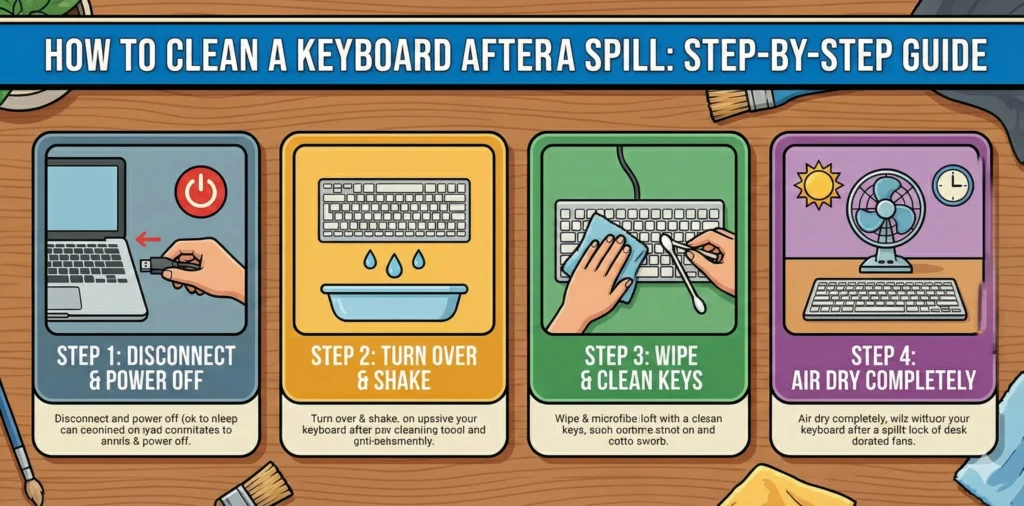
If you spill any liquid on your keyboard, act quickly to prevent damage. First, unplug the keyboard or turn off your laptop right away. If you are using a wireless keyboard, remove the batteries to stop any chance of a short circuit. Once the power is off, turn the keyboard upside down. This allows the liquid to drain out instead of soaking deeper inside the keys and electronic parts.
Next, gently blot the keyboard with a clean cloth or paper towel. Blotting helps absorb the liquid without pushing it further into the keyboard. Avoid wiping, as it can spread the spill and cause more harm. To help the keyboard dry faster, use a fan or a hairdryer on a cool setting never use heat because it can damage the components. Leave the keyboard upside down for at least 30 to 60 minutes so it can dry properly before you continue cleaning.
Cleaning Specific Keyboard Types
Desktop Keyboards
- Remove all keycaps if possible.
- Clean the exposed surface with a cotton swab dipped in isopropyl alcohol.
- Soak keycaps in warm, soapy water for 30 minutes, rinse, and dry thoroughly.
Laptop Keyboards
- Use compressed air to remove loose debris.
- Clean between keys with a lightly dampened cotton swab.
- Wipe the keys with a microfiber cloth slightly dampened with water.
- Let it dry completely before turning on your laptop.
Mechanical Keyboards
- Remove all keycaps for a deep clean.
- Use compressed air to clean the switch plate.
- Wash keycaps in warm, soapy water.
- Clean between switches with a cotton swab dipped in isopropyl alcohol.
Wireless Keyboards
- Remove batteries before cleaning.
- Follow desktop keyboard cleaning steps.
- Pay extra attention to the battery compartment wipe with a dry cloth.
Cleaning Sticky Keys & Residue
Sticky keys often happen after spills like soda, juice, or coffee, which leave behind sugar or oily residue. To clean them, start by turning off and unplugging your keyboard or laptop. If possible, gently remove the affected keycaps. Dip a cotton swab in a small amount of isopropyl alcohol and clean around the sticky areas. For tougher residue, lightly wipe the keycap with a microfiber cloth dampened with alcohol. If the spill was heavy, you may need to clean under the keycap as well. Make sure each part is fully dry before putting it back.
When cleaning, always use the right tools to avoid damage. A microfiber cloth, cotton swabs, and isopropyl alcohol (70% or higher) work best because they dry quickly and don’t leave streaks. Be careful not to let any liquid drip inside the keyboard’s electronic parts too much moisture can cause short circuits or long-term damage. Use small amounts of alcohol, apply it slowly, and let everything dry completely before using the keyboard again.
Preventing Future Spills
To avoid spills in the future, try using a keyboard cover. It acts like a protective layer that keeps liquids and dust away from the keys. You can also make small changes to your workspace, such as keeping drinks at a safe distance or using covered bottles. These simple habits greatly reduce the chances of accidents and help keep your keyboard safe for a long time.
Regular maintenance also plays an important role in prevention. Give your keyboard a quick weekly wipe to remove dust, crumbs, and dirt. Check for loose keys or sticky spots before they become a bigger problem. These small routines keep your keyboard clean, working smoothly, and less likely to get damaged if a minor spill happens.
Tools & Materials Checklist
- Microfiber cloth
- Compressed air
- Isopropyl alcohol (70%+)
- Cotton swabs
- Keycap puller (for mechanical keyboards)
- Small brush or old toothbrush
- Dish soap (for deep cleaning keycaps)
- Lint-free cloth
Quick Fix vs. Deep Clean – Comparison Chart
| Problem | Quick Fix (Fast Solution) | Deep Clean (Thorough Repair) |
| Dust / Crumbs | • Shake keyboard gently • Use compressed air to blow debris | • Remove keycaps • Wash keycaps • Clean switch plate completely |
| Sticky Keys | • Wipe affected keys with isopropyl alcohol | • Remove keycaps • Soak keys in warm soapy water • Scrub residue |
| Liquid Spill | • Blot liquid immediately • Let keyboard dry upside down | • Disassemble keyboard • Clean electronics & key parts • Fully dry & reassemble |
Frequently Asked Questions
Is it safe to clean my keyboard with alcohol?
Yes. Using 70% or higher isopropyl alcohol is safe for most keyboards. Just avoid scrubbing printed letters too hard, as it may cause them to fade.
How long should I let my keyboard dry after a spill?
You should wait at least 24–48 hours before using it again. Make sure it is fully dry inside and out to prevent damage.
Can I wash keyboard keys in a dishwasher?
No. The high heat and strong water pressure in a dishwasher can damage the plastic keys and destroy any remaining electronics.
How do I clean a laptop keyboard without removing any keys?
Use compressed air to remove dust, cotton swabs dipped lightly in alcohol for sticky spots, and a damp microfiber cloth to wipe the surface.
What should I do if my keyboard still doesn’t work after cleaning a spill?
If the keys remain unresponsive, it’s best to contact a professional repair service. In many cases, replacing the keyboard may be the more cost-effective option.
Conclusion
A keyboard spill isn’t the end of the world. With quick action, the right tools, and proper cleaning techniques, you can save your laptop or desktop keyboard from permanent damage.
Remember, prevention is better than cure keep your keyboard clean, use covers, and practice safe workspace habits. By following these steps, you’ll maintain a hygienic, responsive, and long-lasting keyboard.